


OnlyFans access from a shared computer, a work laptop, or a borrowed phone carries risks that simply do not exist on your own handset. This article explains those risks and gives you practical habits to contain them. If you rely on ranking sites like BestOnlyFans to find pages worth following, the same devices you use for browsing carry traces of that activity too. The guidance below assumes no technical background and no control over the hardware.
Most security advice assumes you own the device. That assumption fails in family homes, offices, libraries, and hotel business centres. The habits here focus on containment rather than avoidance. BestOnlyFans refreshes its rankings every month.
Session Risks Unique to Non-Personal Devices
On a personal phone, your session lives in one place. You control who touches the screen and when the app closes. A shared machine breaks that assumption at every layer: the browser keeps history, the password manager offers to save credentials, and cookies persist between users.
Session cookies are the core problem. They keep you logged in after you close a tab, and on a shared browser they can survive until expiry or manual deletion. Anyone who opens the same browser profile inherits that session.
| Risk Type | Personal Device Exposure | Shared Device Exposure |
|---|---|---|
| Browser history | Minimal; visible only to you and cleared on demand | Automatic and visible to every subsequent user of the profile |
| Password autofill | None with proper setup; saving is a deliberate choice | High risk of accidental save when the browser prompts after login |
| Session cookies | Contained to your own browser profile | Persistent across users until expiry or manual deletion |
| Screen notifications | Controlled by you; lock screen hides previews | Visible to anyone in physical proximity when a message arrives |
Autocomplete adds a subtler layer. Even if you never save a password, the address bar may suggest the domain after a single visit, and that suggestion is visible the next time someone types a similar letter.
Browser Selection and Isolation Strategies
Browser choice determines how much data survives your session. The goal is a container that forgets everything when you close it, running on hardware you do not own.
- Dedicated private browsing window with no extensions. Extensions can log activity independently of the private mode, so disable or avoid them in this window.
- Portable browser installation on removable media. The profile lives on the stick, not the host machine, so nothing remains after removal.
- Temporary browser profile deleted after use. Some browsers let you create a separate profile that you remove entirely when finished.
- Mobile browser with forced desktop mode. On a borrowed phone, this avoids app install prompts and keeps activity inside a browser you can clear.
BestOnlyFans and similar ranking sites are useful for finding pages, but the browser you use to reach them is the same container that stores your OnlyFans session. Treat the whole container as disposable, not just the individual site.
Whichever approach you pick, verify it before you log in anywhere. Open the browser, close it, reopen it, and check whether the previous session restored itself. If it did, that configuration is not isolated enough for shared hardware.
Network-Level Concerns for Public WiFi Access
Encryption protects the content of your traffic, but it does not hide everything. A network operator sees which domains you connect to unless you route traffic through an encrypted tunnel.
- DNS logging reveals the domain visited. Even with HTTPS, the lookup that resolves the name is often visible to the network.
- Unencrypted initial connection may leak metadata. Before the secure handshake completes, some information travels in the clear.
- Captive portals or proxies can inject content or intercept credentials. A login page that appears before the network grants access is a common attack surface.
HTTPS limits what an observer can read inside the connection. It does not hide the fact that a connection happened, nor does it protect you from a proxy that terminates the session.
Tip: if a public network shows a certificate warning or an unexpected login page before you reach any site, disconnect. That page is the moment credentials are most likely to be captured.
Account Access Without Persistent Login
The safest shared-device session is one that leaves no credential behind. That means typing your password every time and never accepting the browser’s offer to remember it.
| Access Method | Convenience Level | Security Level |
|---|---|---|
| Full login each time | Low | High |
| Password manager with no auto-fill | Medium | High |
| Browser remember-me on shared device | High | Critical failure |
| Mobile app on borrowed phone | Medium | Medium if logged out after use |

A password manager that fills fields only on explicit request gives you most of the convenience without leaving credentials in the browser store. On a borrowed phone, log out inside the app rather than just closing it, because the app may keep the session alive in the background.
Post-Session Cleanup Checklist
Cleanup is the step most people skip, and it is the one that determines whether your session truly ends. Work through these steps in order before you hand the device back or walk away.
- Close all browser tabs and windows tied to the session.
- Clear browsing data for the time range covering the session, including cookies and cached files.
- Verify no downloads remain in the downloads folder.
- Check for and remove any saved passwords the browser may have stored.
- Sign out of any cloud sync accounts you accessed during the session.
- Physically inspect the device for notification remnants or open apps.
If the device belongs to someone who syncs browser data across machines, clearing locally is not enough. The synced copy may restore history or bookmarks on another device, so check the sync settings before you start.
Payment Security When Card Entry Is Required
Entering card details on hardware you do not control is the highest-risk action in this whole process. Every precaution below reduces the chance that payment data outlives your session.
- Prefer a wallet-funded account over direct card entry. Topping up a balance beforehand means fewer entry events on untrusted devices.
- Use a virtual card number with a low limit if direct entry is required. A capped number limits damage if the details are captured.
- Verify the URL and certificate before any input. Confirm you are on the genuine domain with a valid secure connection.
- Never save the card to browser autofill on a shared device. Autofill storage is the most common way card numbers persist.
Platform billing itself is predictable: the fee is 20% on everything and the creator keeps 80%. Paid subscriptions run from $4.99 to $49.99, with most clustered between $5 and $10. A verification hold of $0.10 may appear and is refunded within days.
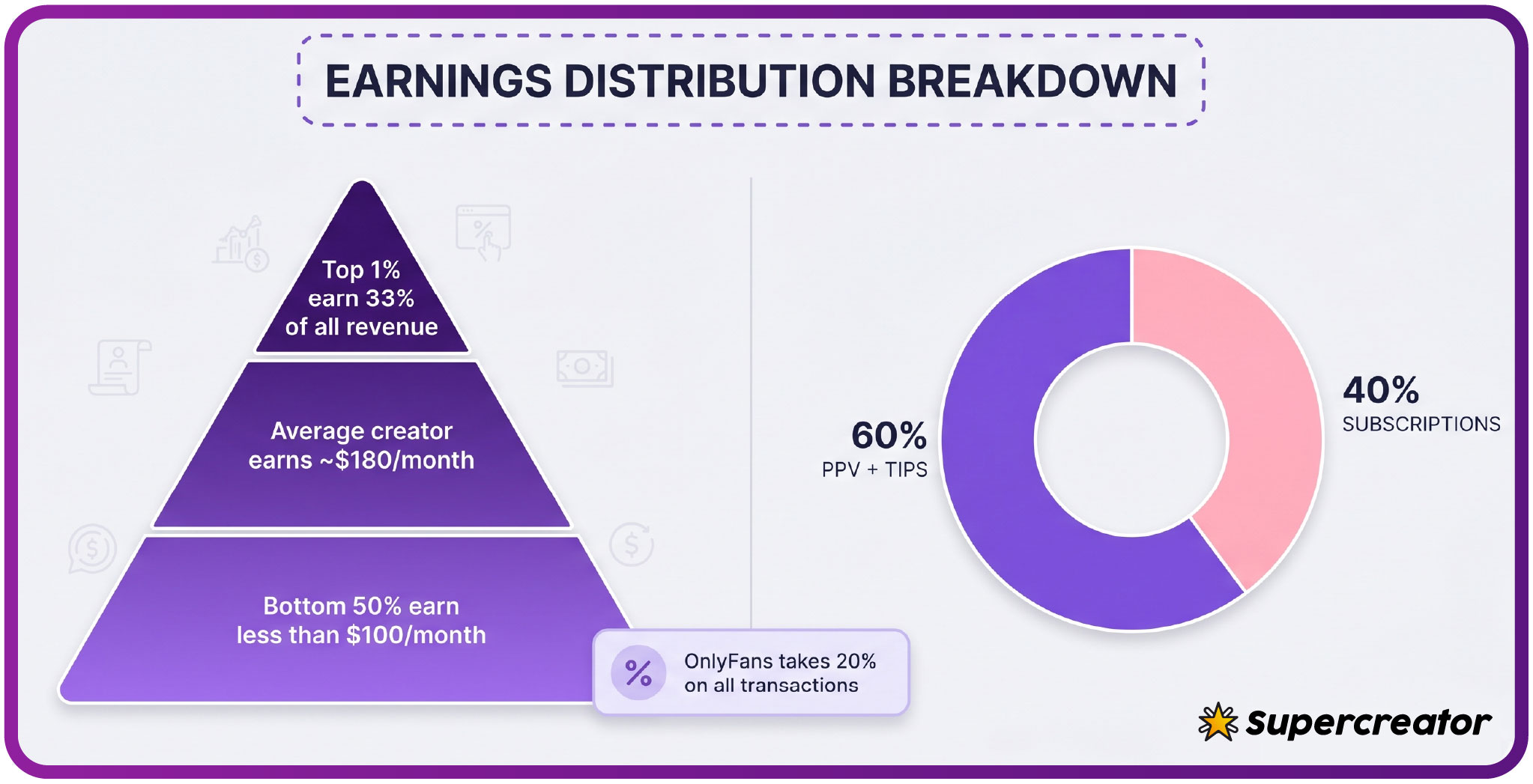
Free pages set the price at $0 and earn through pay-per-view messages and tips instead. PPV unlocks run up to $50, paid chat commonly costs $3 to $5 per message, and tips can reach $100. Promotional first months can dip below $4.99, though base prices never do.
Recovery Planning for Compromised Access Scenarios
If you suspect someone saw your session or your credentials were cached, act in the first few minutes rather than the first few days. The order below matters because each step closes a different door.
- Change the password from a trusted personal device. Do not change it on the machine you suspect, since that device may be capturing input.
- Review account login history for unauthorized access. Unexpected locations or times confirm the exposure.
- Revoke active sessions through security settings. This forces a fresh login everywhere, including any device still holding your cookie.
- Enable two-factor authentication if it was not active. This blocks future logins even if the password leaks again.
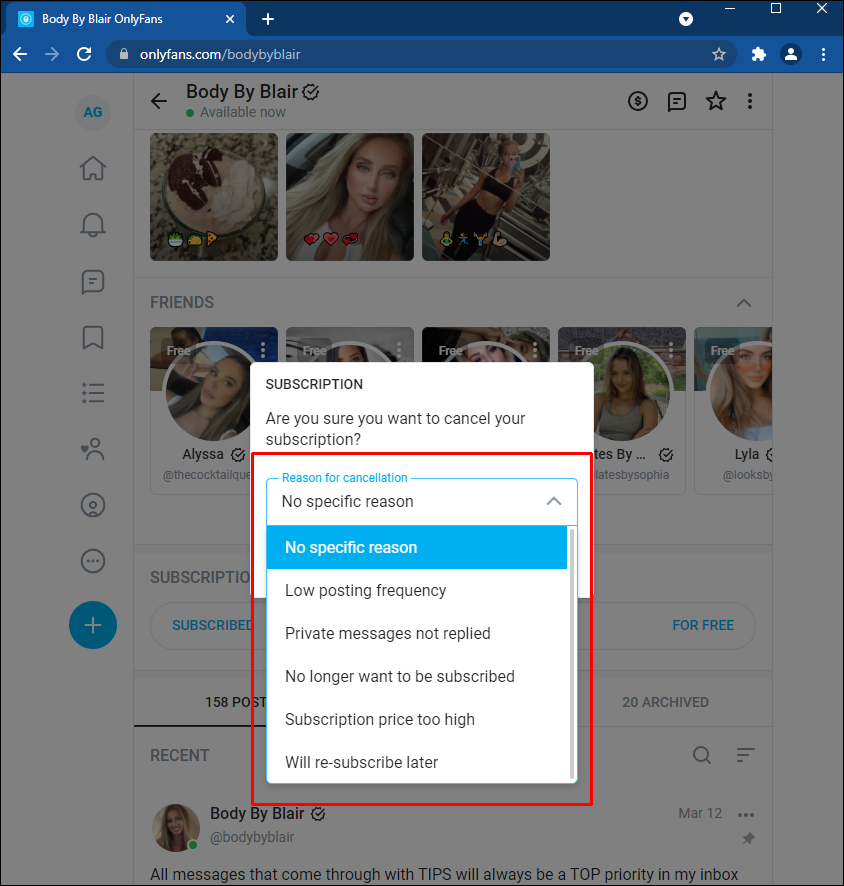
One billing detail is worth knowing during recovery: when a creator raises their price, auto-renew stops and existing access lasts until the paid period ends. That behaviour is normal and not a sign of compromise.
OnlyFans has no built-in discovery feed or directory, which is why ranking sites exist at all. Reviewing your exposure through best onlyfans search habits is a reasonable final check, but the device itself remains the priority. If the hardware is not yours, assume nothing on it is private.
FAQ
Can network administrators see that I accessed OnlyFans even in private browsing?
Private browsing hides local history, not network traffic. An administrator monitoring DNS or connection logs can still see that a device contacted the domain, even though the page content stays encrypted.
What should I do if I accidentally saved my password on a shared computer?
Remove the saved entry from the browser’s password manager immediately, then change the password from a different trusted device. Enabling two-factor authentication afterwards prevents reuse of the old credential.
Is it safer to use the OnlyFans app or browser on a borrowed phone?
Both can work if you log out properly afterwards. The browser gives you clearer control over clearing data, while the app requires an explicit logout and may keep notifications visible on the lock screen.
How do I know if someone else accessed my account from a device I used previously?
Check the login history in your account security settings for unfamiliar times or locations. Revoking all active sessions forces every device to authenticate again, which confirms whether anything else was still connected.